How Can We Help?
Edit the Page
While logged in, click the Edit button on the page to update.

Edit The Block
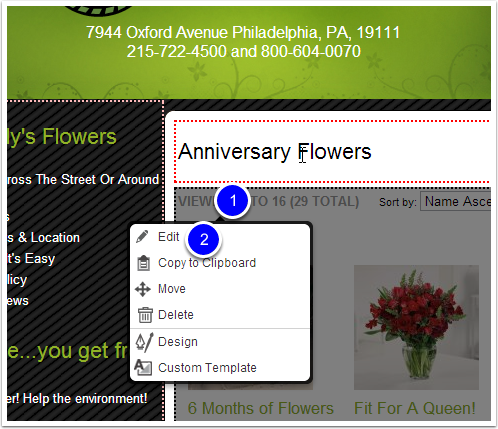
Click on the Product List Block and choose Edit
Confirm Search Parameters
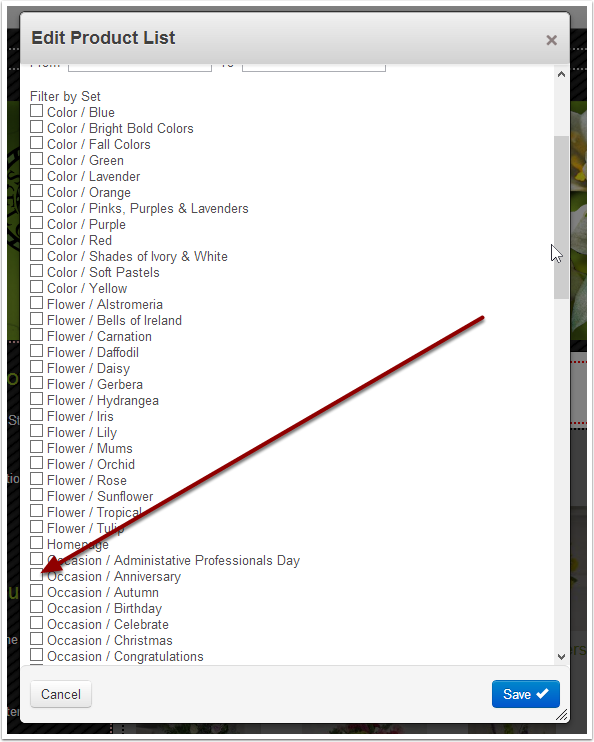
The first tab in the Product List block determines what items are going to be displayed. This can be as simple as a category, keyword search, best sellers, or something more complex. In this case we just want to select the appropriate Product Set.
Check the appropriate Product Set – but don’t click on Save yet!!
Check For Old-Style Attribute Searches
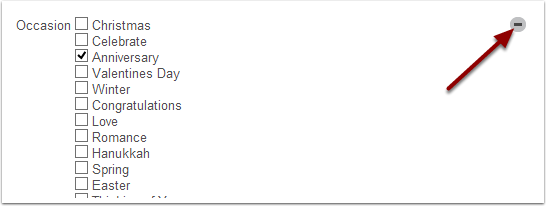
Older pages may still be using the legacy Attribute method for selecting products. If this is the case we want to upgrade to use Product Sets, so click the "-" to delete the Attribute search.
Layout Options
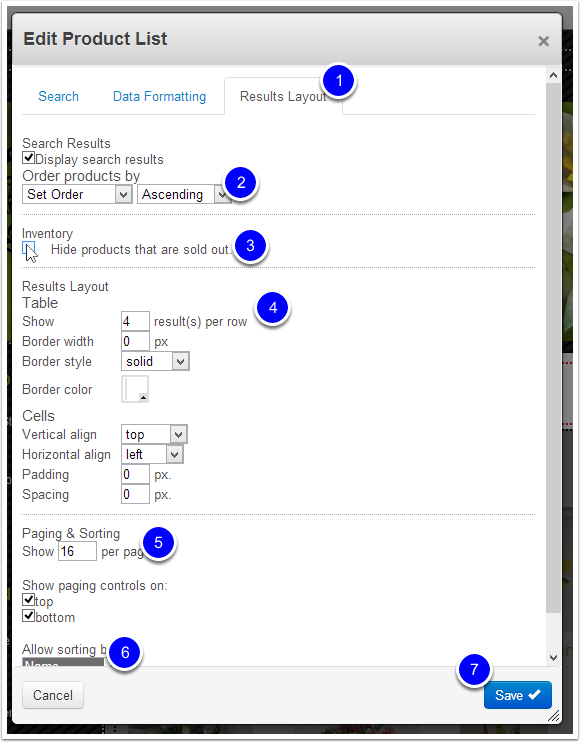
- Move to the 3rd tab "Results Layout".
- Make sure "Order products by" is set to Set Order
- Optionally: Hide sold out products
- How many items per row? (Note: If you change this number you will also want to change the Thumbnail Image size in the Data Formatting tab.)
- How many items per page?
- Select one or more options to allow customers to sort by (ex: name, price). Hold CTRL to select multiple options.
- Save
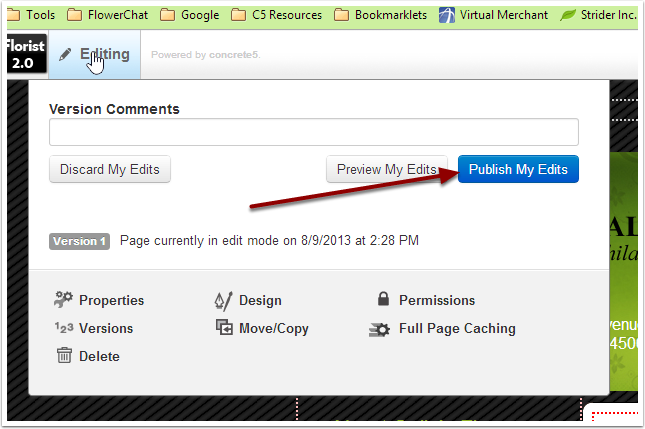
Publish
Publish your edited page
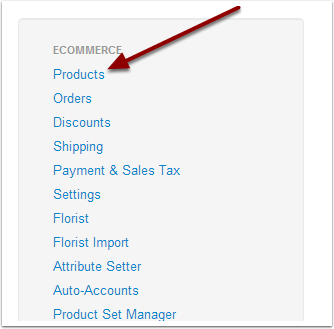
Find Product Sets
Go to Dashboard -> Ecommerce -> Products
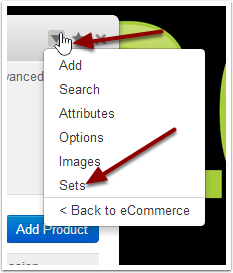
Sets
Click the top-right arrow and select Sets
Sort Products
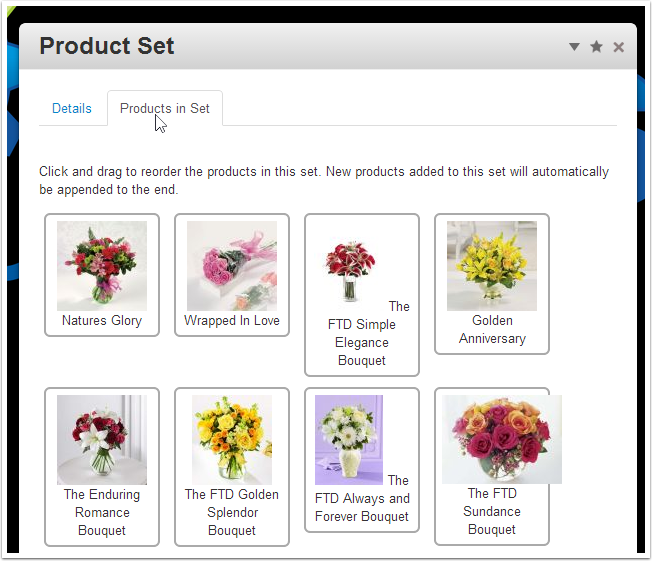
Click on the Product Set name to edit, then click on the Products In Set table.
Drag images into the order in which you want the products to appear.
Save
Save changes – you’re done!