
Skip to main content
How Can We Help?
Go to the Page’s Properties
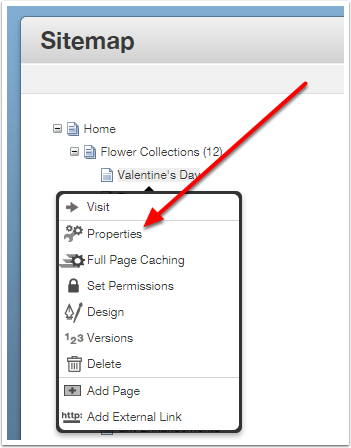
From the Full Sitemap, click on the page name and choose Properties from the menu.
Select the Tab
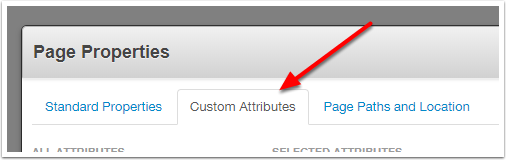
Select the Customer Properties Tab
Check / UNcheck the Nav Option
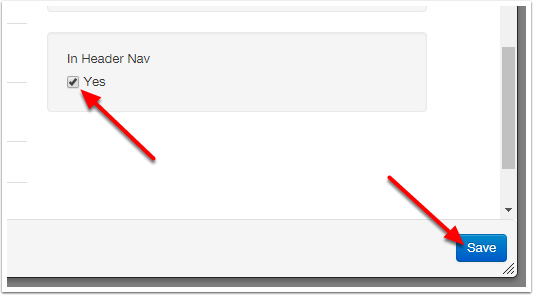
Check the “In Header Nav” box to add the page to the navigation.
UNcheck the “In Header Nav” box to remove the page from the navigation.
Save.
(Optional) Clear Cache
The changes to your navigation might not be evident right away due to caching.
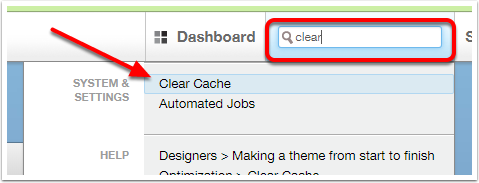
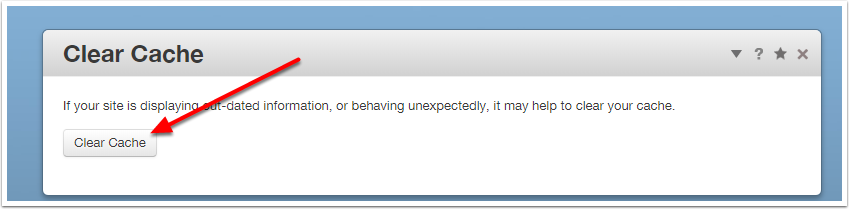
To force the change right away, use the Intelligent Search box to search for the “Clear Cache” option.
(Optional) Clear Cache Pt 2
Click the Clear Cache button.
Additional Instructions:
To disable all the products in a Product Set you’ll need to use the Product Set Manager.
- Dashboard -> Ecommerce -> Product Set Manager
- Action = Modify Products In A Set
- Select the Product Set
- Start Action
- Modification = Disable Products
- Click “Add Modification”
- Click the green “Save & Apply Modifications Now” button.
How do I turn a set on and place it under the seasonal category? ie; turning on St. Patrick’s Day and want to place it under seasonal on main page?
- Edit the Seasonal page
- Click on the Product List Block and choose Edit
- In the first tab UNcheck the existing Product Set selection, and check the new one.
- Save
- Publish the page
The new product selection will now show.