
Skip to main content

How Can We Help?
Open Discounts Menu
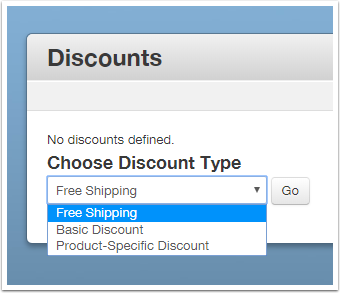
Choose Your Discount Type
Each discount type is explained in detail below.
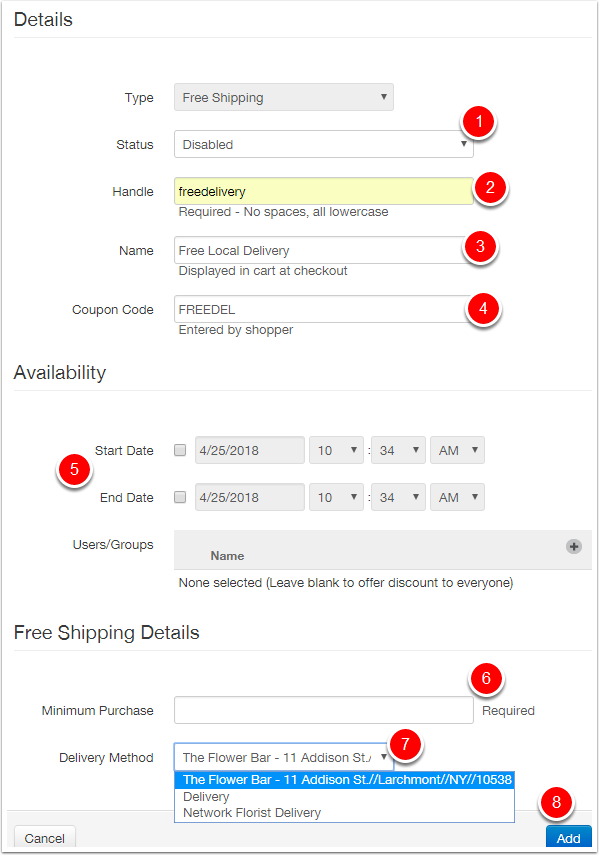
Free Shipping
Offer free delivery as a promotion.
- Toggle the status of the discount
- Give the offer a unique handle (for internal use) with no spaces and all lowercase letters
- Enter a name that customers will see in the checkout
- Enter the actual coupon code
- Determine if there is a start/stop range for this discount
- Enter a minimum purchase value to qualify for the discount
- Select the delivery service that the coupon can be applied to
- Click the Add button to save the discount coupon
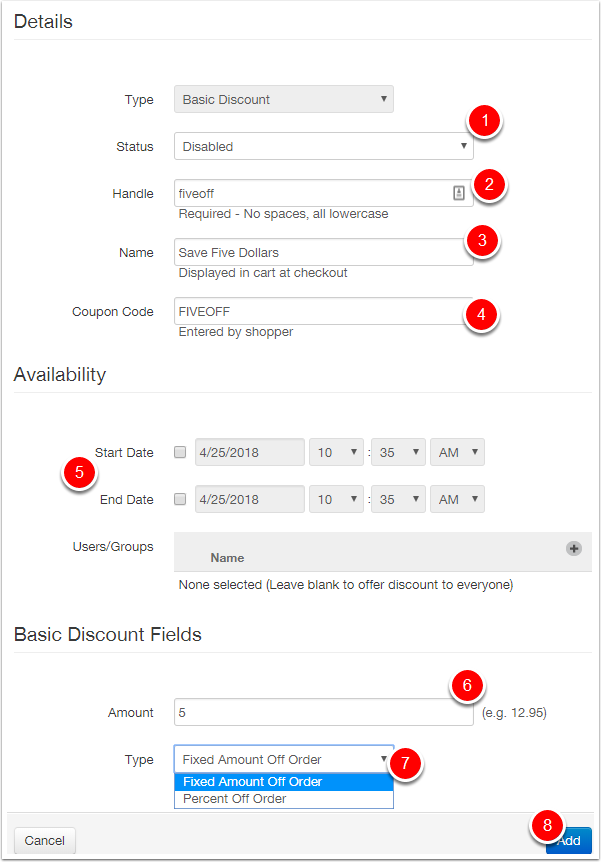
Basic Discount – $ or %
Offer a fixed amount or percentage savings coupon.
- Toggle the status of the discount
- Give the offer a unique handle (for internal use) with no spaces and all lowercase letters
- Enter a name that customers will see in the checkout
- Enter the actual coupon code
- Determine if there is a start/stop range for this discount
- Enter the amount of the discount
- Determine if the amount in #6 is a $ value or % discount
- Click the Add button to save the coupon
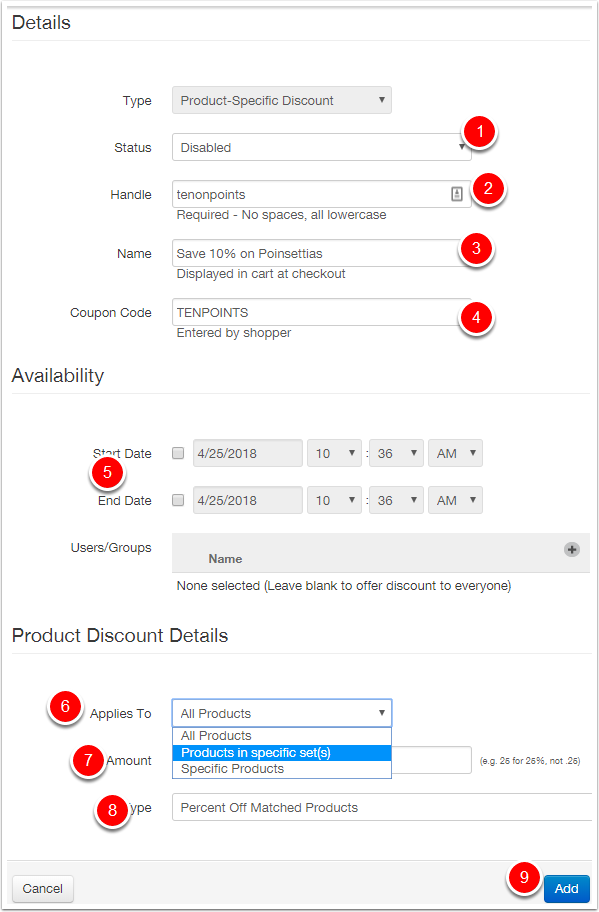
Product-Specific Discounts – $ or %
Offer a fixed amount or percentage savings coupon that only applies to certain products or product sets.
- Toggle the status of the discount
- Give the offer a unique handle (for internal use) with no spaces and all lowercase letters
- Enter a name that customers will see in the checkout
- Enter the actual coupon code
- Determine if there is a start/stop range for this discount
- Select whether the discount applies to All Products, specific Product Sets, or specifically chosen Products
- Based on your selection in #6 you will be asked to select either Products or Product Sets
- Enter the amount of the discount
- Determine if the amount in #7 is a $ value or % discount
- Click the Add button to save the coupon